Use case #03: Light therapy
Open and reproducible analysis of light exposure and visual experience data (Advanced)
Johannes Zauner 
1 Preface
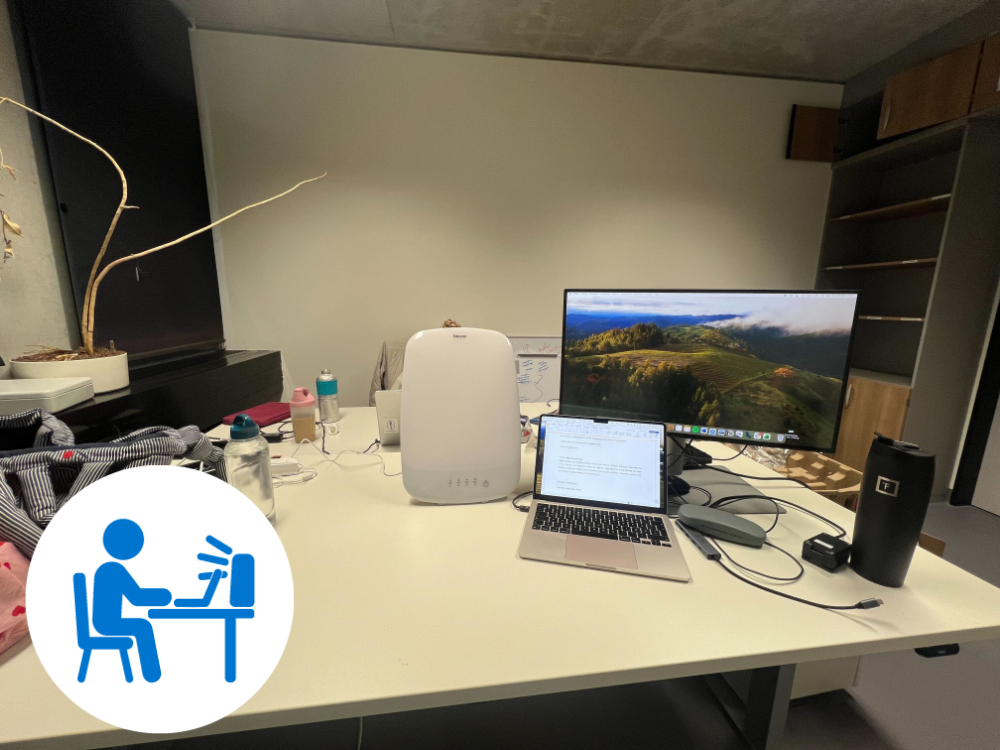
This use case covers an exploratory protocol to capture the effect of a light therapy intervention on personal light exposure. Two participants sit in an office environment, one with, one without a therapy lamp on their respective desk. They follow a typical office workflow. The blinds are shut to reduce the directional (and thus differential) effect of daylight on participant’s light exposure. Artificial lighting is switched on. In the intervention condition the therapy lamp is switched on for one hour. The participants document the start and end times of each protocol phase (pre-light, therapy light, post-light), as well as any deviations from the protocol.

The tutorial focuses on
merging of participant protocol logs with light from a wearable device
analysis of light exposure dependent on lighting conditions
dealing with interruptions from the protocol
advanced plotting & table styling
working with data < 1 day in
LightLogR

2 How this page works
This document runs a self‑contained version of R completely in your browser1. No setup or installation is required.
As soon as as webR has finished loading in the background, the Run Code button on code cells will become available. You can change the code and execute it either by clicking Run Code or by hitting CTRL+Enter (Windows) or CMD+Enter (MacOS). Some code lines have commments below. These indicate code-cell line numbers
NoteIf this is your first course tutorial
You can execute the same script in a traditional R environment, but this browser‑based approach has several advantages:
- You can get started in seconds, avoiding configuration differences across machines and getting to the interesting part quickly.
- Unlike a static tutorial, you can modify code to test the effects of different arguments and functions and receive immediate feedback.
- Because everything runs locally in your browser, there are no additional server‑side security risks and minimal network‑related slowdowns.
This approach also comes with a few drawbacks:
- R and all required packages are loaded every time you load the page. If you close the page or navigate elsewhere in the same tab, webR must be re‑initialized and your session state is lost.
- Certain functions do not behave as they would in a traditional runtime. For example, saving plot images directly to your local machine (e.g., with
ggsave()) is not supported. If you need these capabilities, run the static version of the script on your local R installation. In most cases, however, you can interact with the code as you would locally. Known cases where webR does not produce the desired output are marked specifically in this script and static images of outputs are displayed. - After running a command for more than 30 seconds, each code cell will go into a time out. If that happens on your browser, try reducing the complexity of commands or choose the local installation.
- Depending on your browser and system settings, functionality or output may differ. Common differences include default fonts and occasional plot background colors. If you encounter an issue, please describe it in detail—along with your system information (hardware, OS, browser)—in the issues section of the GitHub repository. This helps us to improve your experience moving forward.
3 Setup
We start by loading the necessary packages.
4 Import
We require both light and log data to be loaded into R before we are able to merge them.
4.1 Light
Light data were captured with ActLumus devices. The exported data files sit in data/light_therapy/.
- Pattern to extract Id’s from file names
We can see that it is a small dataset. If we visualize it we can see both participants measured simultaneously in the morning.
Participant 5541 received the therapy light, and 4789 is the control condition.
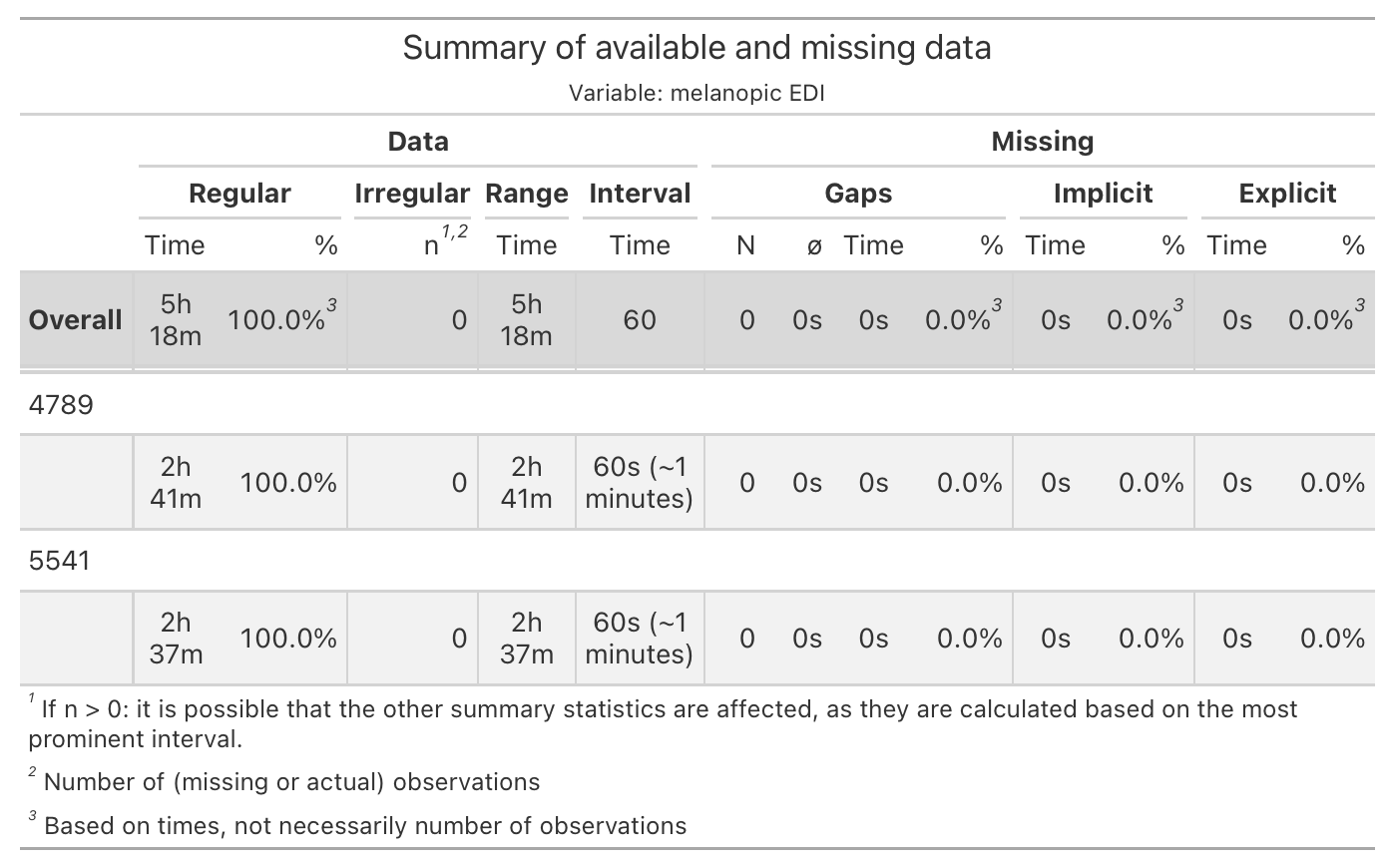
While the import summary did not show indications of gaps or irregular data, it always pays to check this.
As we have less than one day of data, it would not be sensible to check for missing data with regards to a full day.
Hides a few columns which are unnecessary here
4.2 Logs
Participant logs are stored in a consolidated Excel file. Figure 2 shows the contents of the files when opened in Excel.
NoteOn pre-cleaning of manually entered content (logs/diaries)
Note that pre-cleaning was performed to ensure consistent naming and formatting. I have yet to come upon an experiment with manually entered content in the form of logs or diaries that required no cleaning whatsoever.
The utility of these data depend heavily on these factors, some of which can be changed after import:
Identical naming of grouping variables between wearable devices and logs. If there are even slight differences, like an additional whitespace ” “, the merge will be lossy.
Date, time, and datetime formats must be absolutely consistent and follow a standard formatting convention. If there are differences, they will be read in as text and parsing whole columns to the desired format can be lossy.
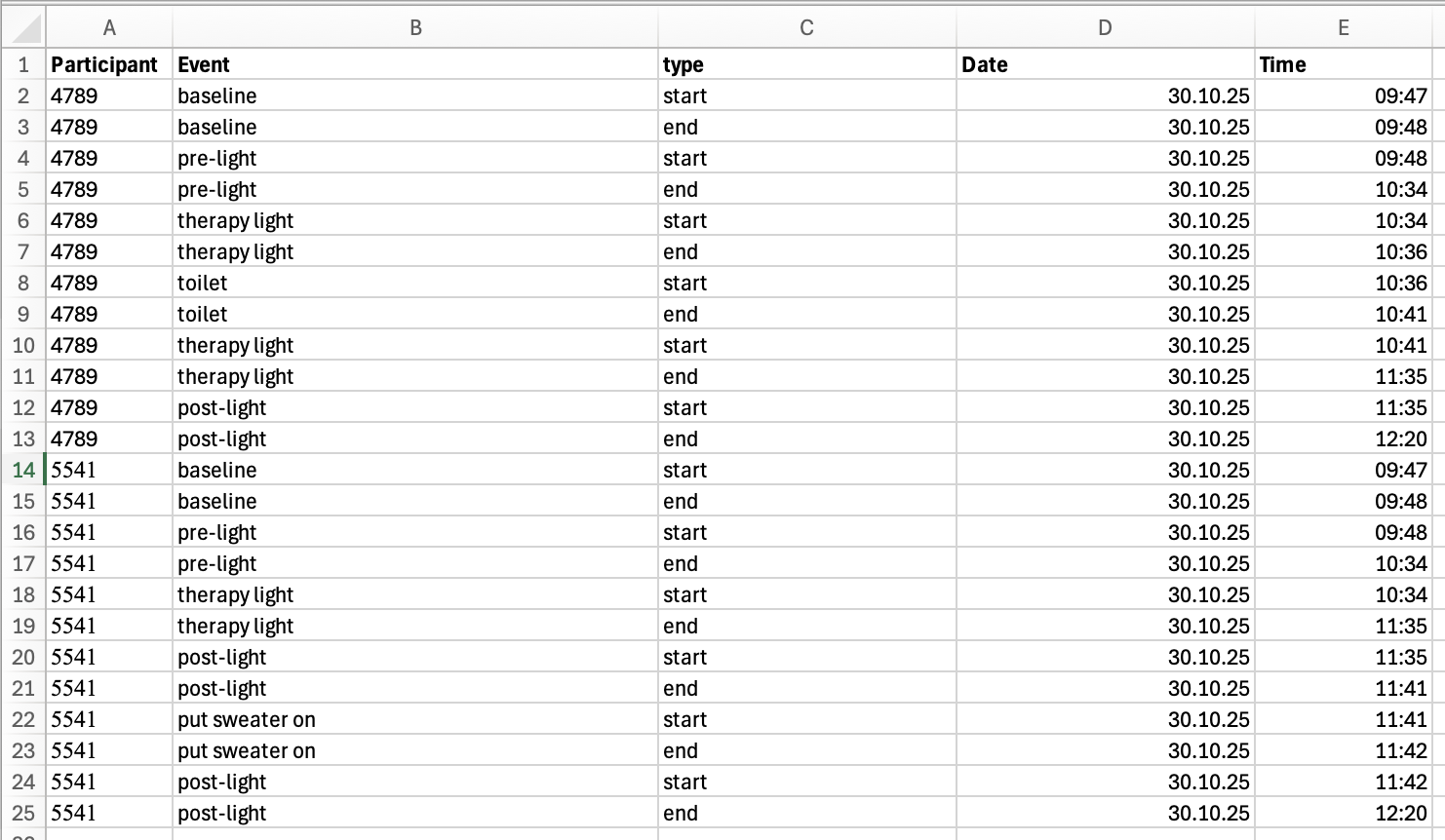
Next we need to make adjustments to naming and types of variables. Note that the time variable is already recognized as a datetime, but with a nonsensical date.
- Use naming conventions from
LightLogR
4-6. Create a datetime that takes the Time variable (which is already recognized as a datetime) and just replace the Date component. Id is changed to a factor, and unnecessary columns are dropped
- Number the
typecolumn by increasing the number with eachstartandendcombo.
8-9. Pivot the dataset so that we end up with a start and end datetime for each state.
Let’s get an overview of our states before merging.
5 Combine light and log data
Combining wearable data with state data is very easy, once both datasets have been properly prepared. We are not interested in all states. States that are not part of the protocol are counted as interruptions and will not be used to calculate target metrics. These are the states we want to keep:
- Pre- and post light intervention:
pre-light,post-light - Condition during light intervention:
therapy light - A baseline measurement of horizontal illuminance at desk level:
baseline
In the next step, we add the information to our light dataset and perform some reformatting of the state names.
- Merges the
state_dataparticipant logs with the wearabledata.force.tz = TRUEassures that the times from the states dataset are matched up with the light data, even though the light data uses theCentral European Time, whereas the states use the defaultUTCtime zone.
5-7. Here we perform several actions on the resulting state. First, we create a factor that only has the relevant states (and will be NA otherwise), and relabel them for sentence case. Lastly we recode the baseline to the correct label.
6 Compare conditions
6.1 Histogram
This next section is not using any LightLogR functions, but it helps to get a sense for the data.
6.2 Table
This section serves to create a fully code-based tabular overview of the data. First, we need to collect the data in the necessary format. Here, one important question arises. Because of the interruptions, no participant has a singular period for all three conditions (pre, light, post). Depending on the LightLogR functions we use, we can either calculate key metrics for all times a certain state is active (by state), or by each episode a certain state is active (by episode). In our case, the by state approach is the better one, but we will highlight both workflows here:
- Condense the dataset to an account of each episode of state (given the grouping by participant). While this is very close to our original
state_datait takes the wearable data into account as well.
3-5. We extract specific metrics from the original dataset with regards to the extracted data. In this case the arithmetic mean (as logarithmic distribution is not really an issue here), and the dose of light.
- This function not only calculates the average of values within each group (participant and state in this case), but also provide the total duration for each condition.
Have a special look at the dose. Participant 4789 has an average illuminance of ~250 lx during Therapy light, which lasted for a total of 56 minutes. But the dose only shows ~ 125 lx·h. The reason for that is, because it is not dose, but the mean_dose across all episodes, of which there are two (due to the interruption). We could correct that bei either scaling the dose by episode post-hoc, or by using a manual summary function that takes the duration of individual episodes into account. Instead, we have a different way of getting to the correct outcome by using the durations() function instead of extract_states().
We require a dataset that is also grouped by the state variable
Calculate the duration of every state - but only when a value for melanopic EDI is available
The function requires the same dataset that was the basis for
durations()It further requires an identifying column name for the extraction. In our case, the
statecolumn is sufficient
Again, have a look at the dose. Participant 4789 has an average illuminance of ~267 lx during Therapy light, which lasted for a total of 56 minutes. The dose is 249 lx·h, which is exactly what you would get by dividing 267lx by 60 minutes times 56 minutes.
Thus we will continue with the by state method and prepare the data for the table.
- If there is only a singular datapoint,
durations()can not discern its validity duration. Here we manually exchange it for the epoch.
14-16. By pivoting wider we move from one row per condition and participant to one row per condition.
Then we can produce the table. This next code cells does not contain any LightLogR functions, but simply uses our previous output (data_tbl_comparison) and prints it as a gt table.
6.3 Plot
In this section we create two plots of our data, highlighting the differences due to the intervention. The first plot contains a timeline of melanopic EDI, the second the cumulative dose.
We start with a few necessary preparations:
Now we are ready to create the first plot:
2-3. Remove all the states that do not belong the experimental protocol
Fill in empty observations for the filtered times
LightLogRplotting function - we use the reverse coding of participants to get the desired coloringBy default
gg_day()plots points, this changes it to linesBy default,
gg_day()creates one panel per day. In this case, we are not interested in identifying the day.By default,
gg_day()scales withsymlogto include 0 with logarithmic scaling."identity"simply sets it to a linear scale.By default,
gg_day()creates breaks every three hours, here we set it to every half hour.By default,
gg_day()sets breaks every 10^ step. Here we set it to steps of 500 lx, but also keeping 250 lx, as that is the base intensity.
11-14. gg_states() adds the backdrop of states. Try setting ymin and ymax.
Ensures that the
Therapy lightcondition has a blue coloringAdds the axis we prepared before
Reduce the limits of the plots to areas of interest
Adding the symbols
Lastly, we create a cumulative plot. Only the differences compared to above will be highlighted here.
We calculate a cumulative value from start to end for each participant
We set the y.axis variable to
doseinstead of the defaultMEDI
7 Conclusion
Congratulations! You have finished this section of the advanced course. If you go back to the homepage, you can select one of the other use cases.
Footnotes
If you want to know more about
webRand theQuarto-liveextension that powers this document, you can visit the documentation page↩︎